How to erase PDF sections securely
A white rectangle can hide words on screen without removing them from a PDF. If the content must be removed from an edited page, choose the eraser’s Secure erase mode and check the saved document.
Open PDF Section EraserUnderstand the two save modes
Secure erase renders each marked page, paints the selected rectangles white, and rebuilds that page as an image in a new PDF. The original text layer and interactive elements on the rebuilt page are not retained. Untouched pages are copied instead of being rasterized.
Preserve selectable text places white covers over your selections while retaining the original PDF structure. Covered text may still be copied, searched or recovered by inspecting the file. Use this mode for visual cleanup only, not to remove confidential information.
Mark and save an area
- Open the eraser and choose your PDF.
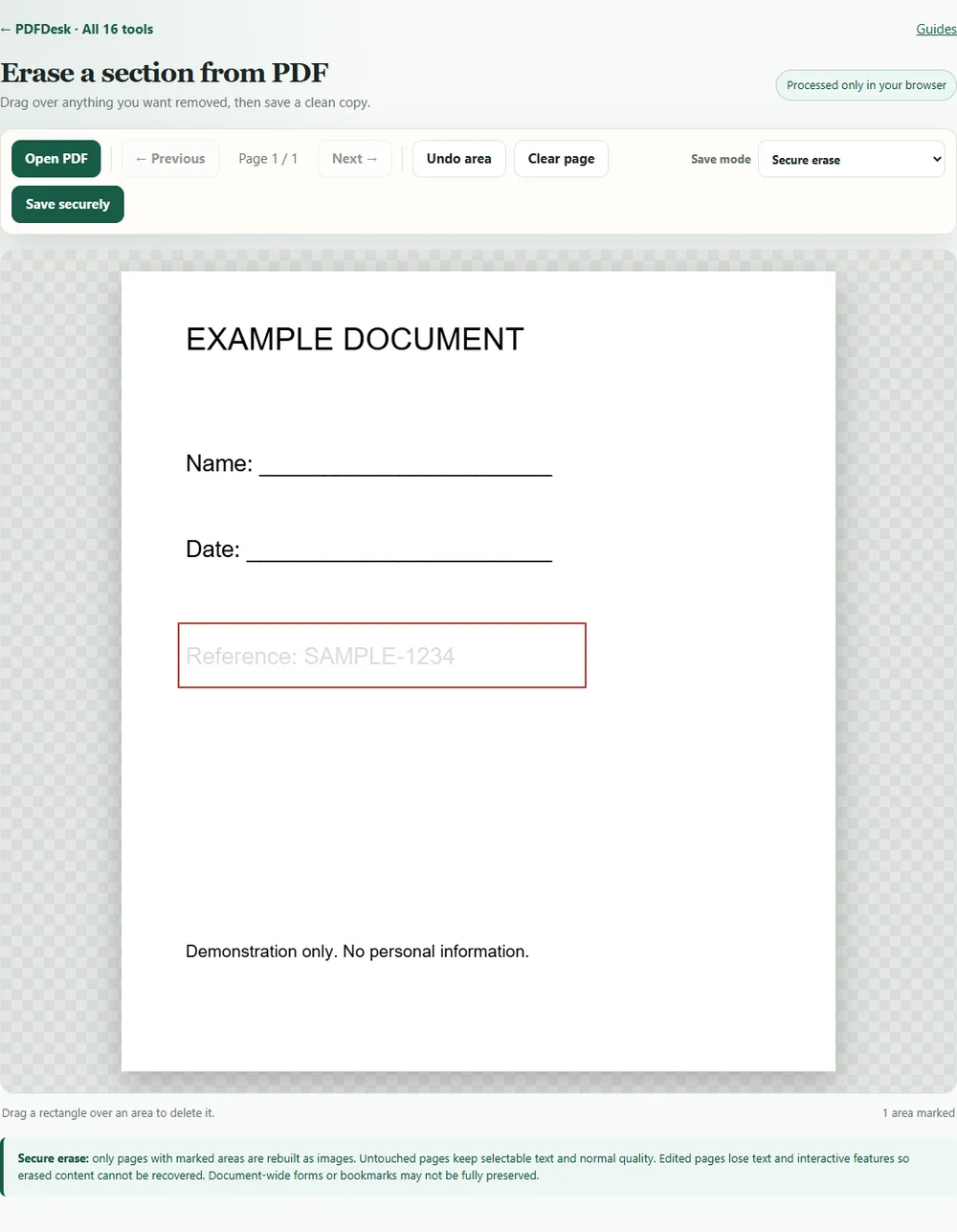
- Drag a rectangle over the whole area to remove. Include a little extra space around the letters or image edges.
- Use Undo area to remove the most recent selection, or Clear page to start that page again.
- Move through the document with Previous and Next. Mark every occurrence that needs removal.
- Leave the save mode on Secure erase and select Save securely.
- Open the downloaded copy and review every edited page.
Check the result, not just the preview
The preview shows your selected rectangles; the saved PDF is the result you should inspect. Check at a high zoom level for letters or image edges left outside the marked areas. Try searching for the removed phrase and copying text from the edited page.
Rebuilt pages lose selectable text, links and forms. The export uses compressed page images, so fine detail may change. Document-wide forms or bookmarks may not be fully preserved.
Know the scope of the tool
This is a page-area editor, not a full document-sanitization audit. It does not automatically find repeated names, remove information on untouched pages, or prove that no sensitive data exists elsewhere in a document. Marking a name on page 1 does not remove its occurrence on page 2.
Keep the original separately and share only the checked output. The tool processes documents in your browser and accepts PDFs up to 50 MB.